Generation

Text to video generation for browser-first creators

Turn a text prompt into a video starting point, then keep building from there. FrameCompose brings generation, captions, voiceover, transitions, and editing together in one browser-based workflow.

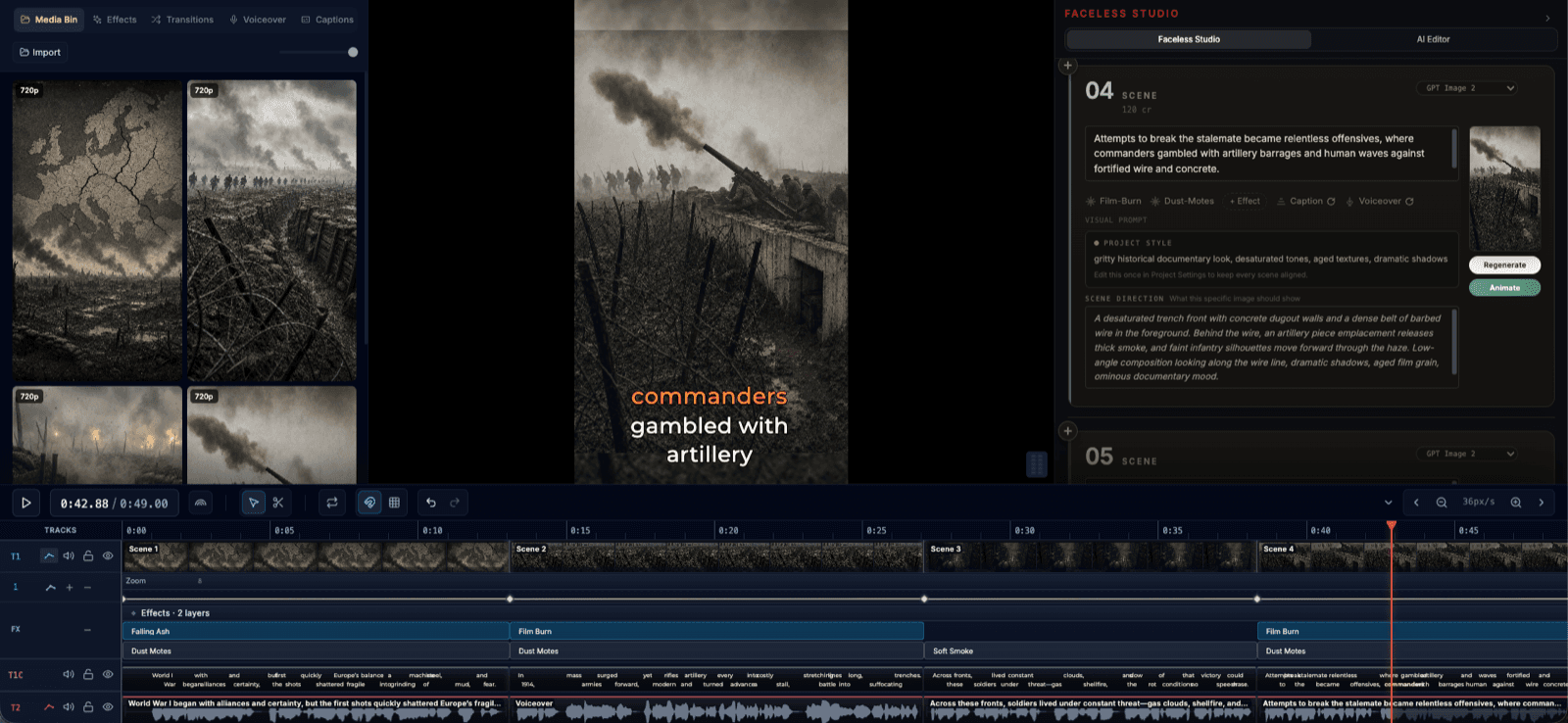
Generate video scenes from a text prompt directly in the browser editor.

Treat the result as a draft — refine captions, voiceover, timing, and transitions.

Generation and editing happen on the same timeline, no tool-switching.

Ideal for faceless videos, explainers, and repeatable content workflows.

From prompt to first draft in seconds

Describe the topic, tone, or structure you want, and FrameCompose generates a video scene as a starting point. Instead of staring at an empty timeline trying to figure out where to begin, you start with something real — visuals, voiceover, and captions already in place.

That first draft is where momentum starts. You can immediately see what works, cut what does not, and begin shaping the video into the version you actually want to publish.

Keep editing after generation

Most text-to-video tools give you a single output and call it done. FrameCompose treats generation as the first step. The generated scene lands on your timeline like any other clip, and from there you have full control: edit captions word by word, adjust voiceover pacing, trim and rearrange scenes, add transitions, and apply effects.

That means you can take a rough AI-generated draft and push it toward something tighter, clearer, and more watchable — all inside the same editor, without exporting and reimporting between tools.

Made for faceless and narration-driven formats

Text to video is a natural fit for formats where the voice and captions carry the video: faceless shorts, Reddit story compilations, educational explainers, listicle content, product walkthroughs, and any workflow where you start from a script rather than footage.

Generate the visual layer from your script, then focus your editing time on pacing, caption clarity, and voiceover quality — the parts that actually determine whether viewers keep watching.

One workflow from script to export

Once scenes are generated, the finishing pass happens in the same workspace. Add transitions between scenes, fine-tune caption timing, polish the voiceover, apply visual effects, and export the final video — all without leaving the browser.

That end-to-end workflow is what makes FrameCompose practical for real production. You can go from a text prompt to a published video in a single session, and every step happens on the same timeline.

Frequently asked questions

A few quick answers before you jump in.

How does text to video generation work in FrameCompose?

Describe what you want in a text prompt — the topic, tone, or structure — and FrameCompose generates a video scene as a starting point. From there, you can keep editing captions, voiceover, timing, transitions, and effects on the same timeline before exporting.

What happens after a scene is generated from text?

The generated scene appears on your timeline like any other clip. You can adjust the timing, edit captions word by word, swap or regenerate the voiceover, add transitions between scenes, apply effects, and export when it is ready. Generation is the starting point, not the final output.

Is text to video generation free?

Text to video generation is available on the Pro plan, which includes 1,000 credits per week. The free plan includes full editing capabilities — local projects, voiceover generation, transcription, captions, 100+ effects, and export — so you can edit and finish videos at no cost.

What types of videos work well with text to video?

Text to video generation works especially well for faceless videos, short explainers, Reddit story content, educational clips, product walkthroughs, and any format where narration and captions carry the video. It is a fast way to produce a first draft that you can then refine.

Can I combine generated scenes with my own footage?

Yes. You can mix AI-generated scenes with your own media on the same timeline. Upload your clips, arrange them alongside generated scenes, and edit everything together with the same captions, transitions, and export tools.

Related pages

Explore the rest of the workflow, from first idea to final export.