Terminal & agent workflow

Build and edit videos from the command line

Turn a folder of local clips and a JSON recipe into a finished, editable FrameCompose project. Use the framecompose CLI yourself or hand it to an AI coding agent in Cursor or Claude Code.

Maintained by the FrameCompose product team · Last reviewed 15 October 2026

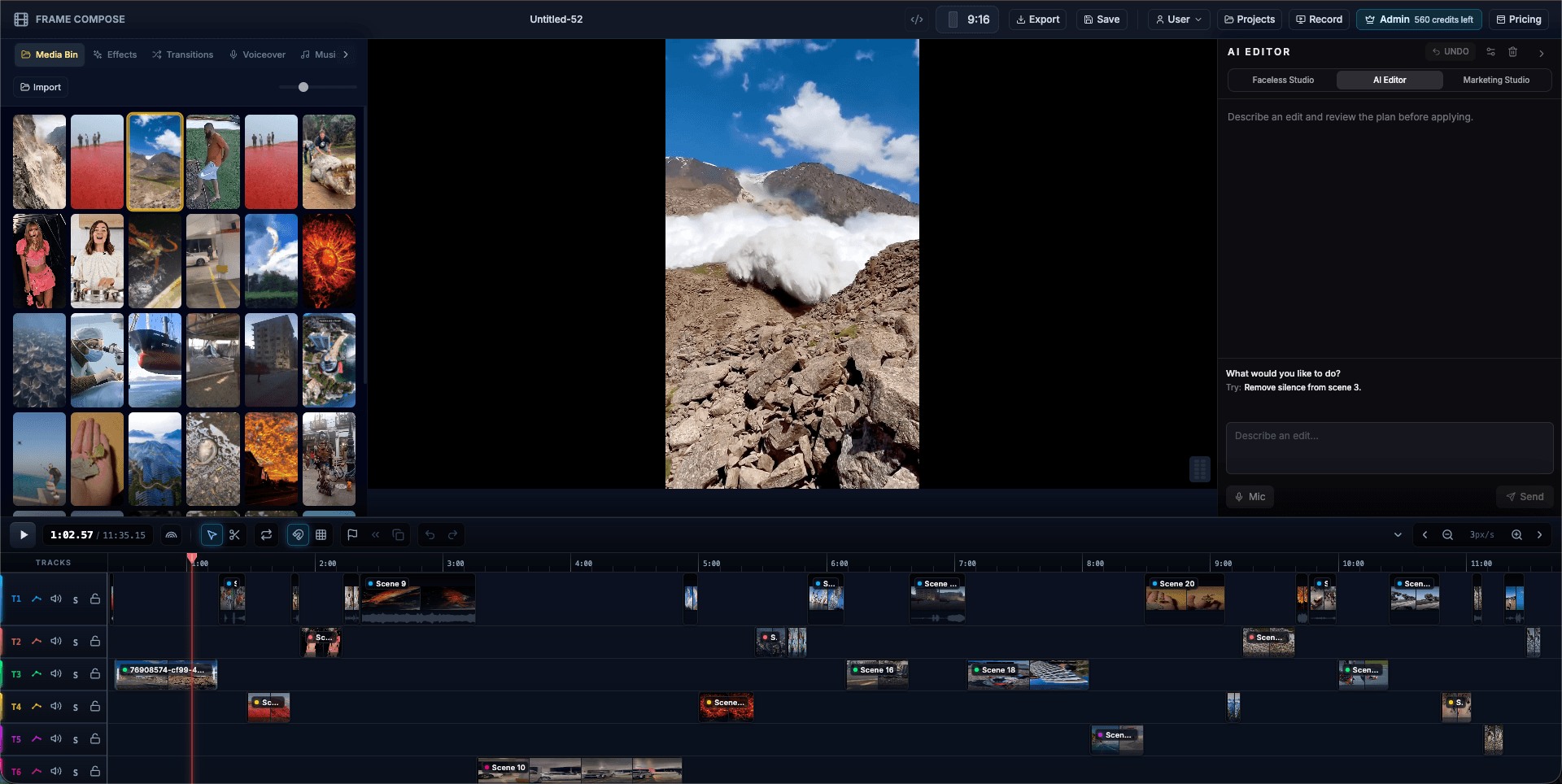
FrameCompose multi-track timeline showing scenes, captions, voiceover, and music built via the CLI
Projects assembled from the CLI open as normal multi-track timelines in the browser editor and update live as commands run.

Assemble clips, transitions, motion, voiceover, synced captions, music, and SFX from a JSON recipe.

Validate recipes and preview credit estimates for free with framecompose build --dry-run.

Tweak any scene, caption style, transition, or audio track in about a second without rebuilding.

Structured --json output and deterministic exit codes designed for AI coding agents.

1. Build once from a JSON recipe

Start with a folder of video clips, images, or audio files and a declarative framecompose.recipe/v1 JSON file. The CLI uploads your local files once, resolves music and sound effects from the commercial-use library, aligns word-by-word captions to your narration, and places every track onto a cloud project.

Always run a free dry run first. It checks every file path, trim range, transition name, font, and caption preset, and prints the exact credit estimate before any paid narration is generated.

Dry run, then build live into the open editor

Pass --live to watch each clip, music block, caption lane, and end card appear step by step in your browser.

framecompose build recipe.json --dry-run --json
framecompose build recipe.json --project <projectId> --max-credits 15 --live

2. Surgical edits in about a second

You never need to rebuild a project just to adjust a trim, swap a transition, lower the background music, or change your caption font. Surgical commands modify the saved timeline in place in roughly one second, cost zero credits, and record an undo step for every change.

If you have the project open in your browser, the editor polls the agent revision and follows your terminal edits automatically within about two seconds.

Inspect, tweak scenes and captions, or save a checkpoint

Every write command is one undo step. Named checkpoints let you pin a state before trying a new cut.

framecompose inspect <projectId> --json
framecompose checkpoint save <projectId> before-tweaks
framecompose edit <projectId> --scene 1 --trim-end 4.5 --transition CROSSFADE
framecompose edit <projectId> --captions --font-family Montserrat --animation pop --highlight on
framecompose undo <projectId>

3. Free intelligence, silence removal, and beat montages

The CLI exposes FrameCompose analysis tools directly in your terminal. Find the strongest hooks in a long recording, crop landscape footage around active speakers, strip dead air without chopping background music, or cut clips onto the beat of your soundtrack.

Every analysis command supports previewing or dry-running first so you can inspect the proposed cuts before applying them to the timeline.

Run analysis and beat-synced editing from the terminal

Each applied tool saves a normal timeline edit that you can undo with framecompose undo.

framecompose highlights <projectId> --apply --top 3 --json
framecompose cut-silence <projectId> --dry-run --json
framecompose auto-reframe <projectId> --json
framecompose analyze-beats <projectId> --json
framecompose montage <projectId> --style punchy --duration 30 --transition CROSSFADE --sfx

4. Catalog discovery, server render, and verification

Query the live server catalogs from your terminal whenever you need valid transition IDs, shader effects, camera motions, caption presets, AI voices, music tracks, or sound effects.

Once your timeline looks right in the browser editor, trigger a server render with the same WebGPU and WebCodecs export engine used by the browser app and download the finished MP4.

Browse catalogs and render the final MP4

Credits are charged when a server render starts and refunded automatically if a render fails.

framecompose transitions --json
framecompose effects --json
framecompose caption-styles --json
framecompose sfx search whoosh --limit 5 --json
framecompose render <projectId> --resolution 1080 --wait --out episode.mp4 --json

Frequently asked questions

A few quick answers before you jump in.

What is the FrameCompose CLI?

The FrameCompose CLI (framecompose) is a command-line tool that lets you and your AI coding agents create, inspect, edit, and render real FrameCompose cloud projects from a terminal. Projects built with the CLI open directly in the browser timeline editor.

Do CLI-built videos stay editable in the browser?

Yes. Unlike static command-line render scripts that only output a flattened MP4, the FrameCompose CLI builds a real multi-track project with separate scenes, word-timed captions, voiceover, music ducking, transitions, and effects that you can open and refine in the browser editor at any time.

Do I have to rebuild the whole project to tweak one scene?

No. After the initial build, commands like inspect, edit, patch, split, reorder, overlay, undo, and checkpoint update the existing project in about a second without re-uploading media or re-running speech recognition. If the project is open in your browser, it updates live within about two seconds.

Does the CLI support AI agents and MCP?

Yes. Every CLI command supports --json so agents receive a single structured JSON response on stdout with deterministic exit codes. The same compose engine also powers the FrameCompose MCP server tools.

How do I authenticate the CLI?

Create a personal API key on the API keys page (/settings/api-keys) and run framecompose login in your terminal, or set the FRAMECOMPOSE_API_KEY environment variable. API keys are scoped to project creation, editing, and rendering, and cannot change billing or delete your account.