Editable AI video

Generate the whole video. Keep control of every part.

FrameCompose treats AI output as a first draft rather than a finished file. The scenes, narration, captions, timing, and effects remain available for direct editing after generation.

Maintained by the FrameCompose product team · Last reviewed 6 August 2026

Pigeons vs Drones prompt-to-video demo: A 10.6-second first-party recording showing a prompt becoming a scripted, animated, captioned short on an editable timeline.
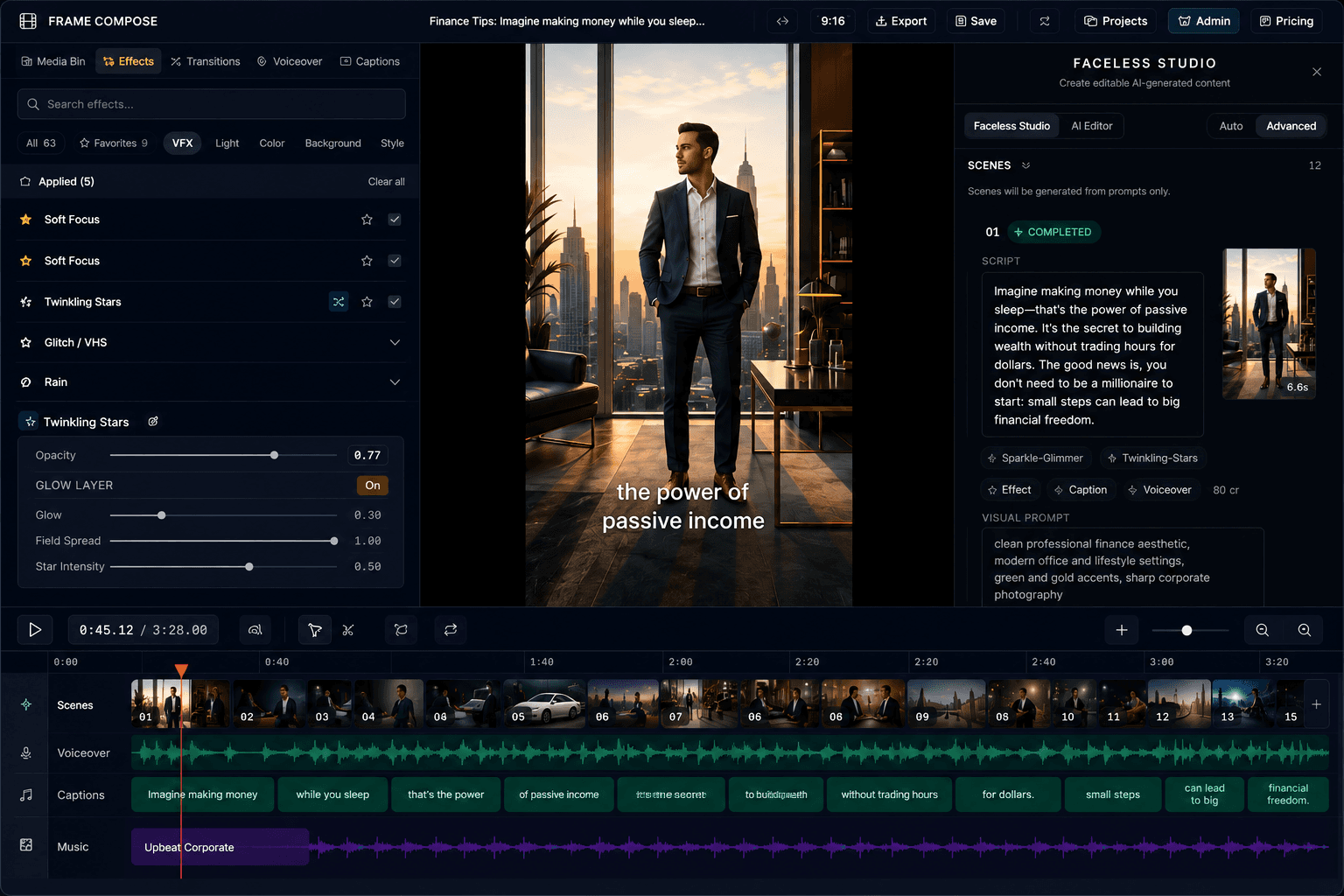
FrameCompose editor with generated scenes, captions, voiceover, and effects on a timeline
Generated media and normal timeline controls live in the same browser editor.

Generate scenes, narration, and captions from one idea or script.

Open the result on a scene-based multi-track timeline.

Replace one weak scene without rebuilding the good ones.

Mix generated material with uploads, transitions, music, and manual edits.

Generation is the starting point, not the handoff

One-prompt generators are useful when the first result is already close enough. They become frustrating when scene three is wrong but the other nine scenes are good. FrameCompose keeps the generated structure visible so the correction happens inside the project rather than through a complete rerun.

That also makes the workflow suitable for repeated production. A creator can reuse a visual direction, repair outliers, and finish the video with ordinary editing decisions instead of accepting every automated choice.

What remains editable

Each generated scene can keep its own media, duration, captions, voiceover, effects, transitions, and placement. Uploaded images, videos, music, and sound can sit beside generated material on the same timeline.

Changing a caption or moving a clip does not require another image or video generation. Credits are only relevant when a paid generation action is requested again.

A practical repair workflow

Preview the complete draft once, mark the scenes that break the story, then fix the smallest possible unit. Replace the visual, adjust the line, retime the caption, or regenerate only that scene. Review the joins and export when the timeline reads cleanly.

This keeps the accepted scenes stable and makes it easier to compare the cost of a correction with the value it adds.

Where human review is still required

AI media can miss details, continuity, spelling, brand accuracy, or factual context. A generated draft still needs a human review before publishing. Browser performance also depends on the project size, media format, and device capabilities.

FrameCompose is designed to make that review and repair practical; it does not promise that every first generation is production-ready.

Frequently asked questions

A few quick answers before you jump in.

Can I edit an AI video after it has been generated?

Yes. The generated result opens as a normal project with separate scenes, caption blocks, voiceover, music, effects, and timing controls.

Do I have to regenerate the full video when one scene is wrong?

No. Replace, restyle, upload over, or regenerate the individual scene while keeping the rest of the project.

Can I add my own footage to a generated video?

Yes. Uploaded images, video, and audio can be placed alongside generated assets on the same timeline.

Do manual edits use generation credits?

Normal timeline edits do not request new generated media. A new image, video, or other paid model action can use credits according to the selected model.

Related pages

Explore the rest of the workflow, from first idea to final export.