Scene-level repair

Fix the scene that missed. Leave the rest alone.

A weak visual should not force a full rerun. FrameCompose exposes each scene so you can replace its media, generate an alternative, upload your own asset, or adjust its timing without throwing away the rest of the video.

Maintained by the FrameCompose product team · Last reviewed 6 August 2026

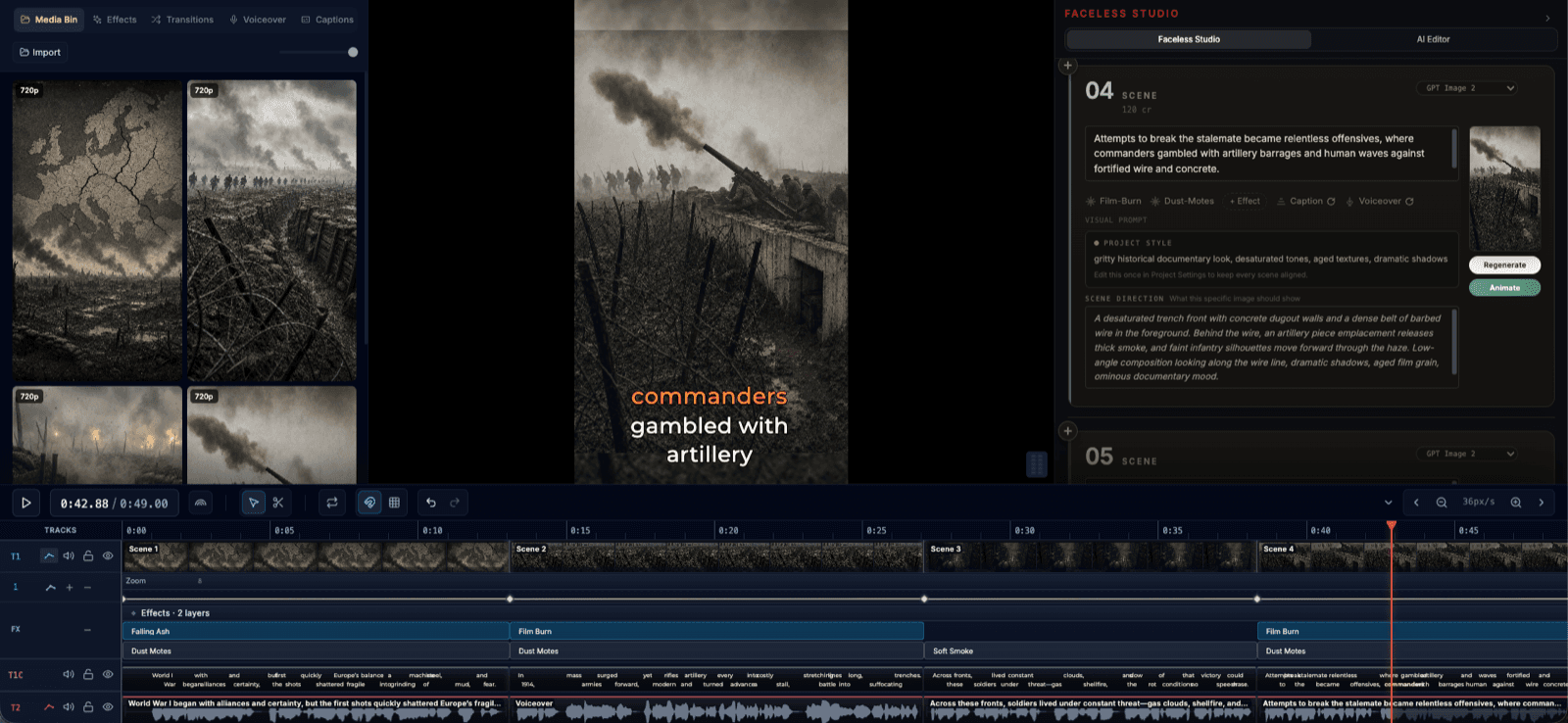
FrameCompose Video Studio and editable scene timeline
The generated draft remains split into editable scenes, captions, and audio.

Select the exact scene that needs work.

Generate an alternative or replace it with an upload.

Keep the existing narration, captions, and neighbouring scenes.

Preview the transition before spending time on further changes.

Identify the smallest broken unit

A scene can fail for different reasons: the visual may not match the narration, a character may drift, the shot may feel repetitive, or the timing may simply be too long. Diagnose that first so the replacement solves the real problem.

If the media is wrong but the words are right, keep the narration and captions. If the line itself is wrong, correct the script before creating another visual.

Choose replacement instead of restart

FrameCompose lets you swap the selected scene with generated media, a variation, a restyle, or an uploaded image or clip. The surrounding project remains in place, which makes before-and-after comparison straightforward.

A targeted replacement also prevents unrelated scenes from changing merely because a full-video prompt was run again.

Check continuity at both edges

The new scene must work with the end of the previous scene and the beginning of the next one. Preview both transitions, confirm the caption timing, and listen for an abrupt change in voice or music.

Small timing adjustments are often enough to make a visually better replacement feel intentional.

Limits of scene regeneration

A replacement model can still misunderstand a person, product, location, or factual detail. Reference material improves direction but does not guarantee perfect continuity. Review logos, text, faces, hands, and claims before export.

Frequently asked questions

A few quick answers before you jump in.

Can I replace a scene without changing the voiceover?

Yes. Keep the existing scene narration and captions while replacing only the visual media.

Can I upload my own replacement clip?

Yes. An uploaded image or video can replace generated media and remain editable on the timeline.

Will the timing of later scenes move?

Replacing media does not inherently require rebuilding later scenes. You can preserve the scene duration or adjust it deliberately.

Does regenerating one scene cost less than regenerating everything?

Only the requested generation action is run. The exact credit use depends on the selected image or video model and its settings.

Related pages

Explore the rest of the workflow, from first idea to final export.