JSON to video

JSON to video that stays editable

Programmatic video, without the flat render. Write one short JSON file that says which clips to use, what the voice says, how the captions look, and where the music sits. FrameCompose turns it into a real video project you can open and edit, then renders the MP4 when you are happy.

Maintained by the FrameCompose product team · Last reviewed 30 October 2026

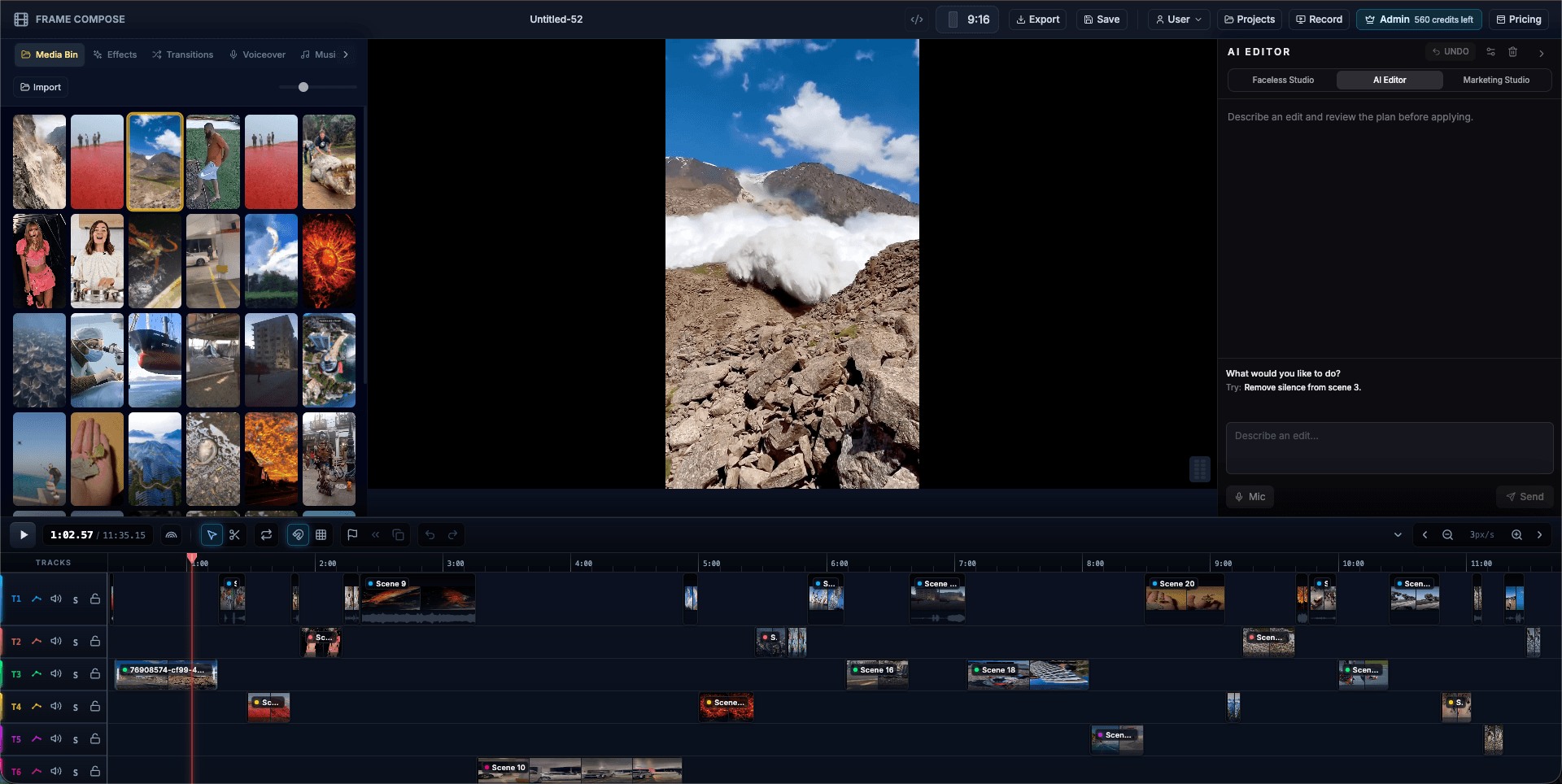
FrameCompose multi-track timeline with scenes, captions, voiceover, and music built from a JSON recipe
One recipe in, one normal multi-track project out: every clip, caption, and audio block stays editable.

One recipe covers the whole video: clips, transitions, camera moves, voiceover, captions, music, and sound effects.

A free dry run checks every file, field, and name, then shows the credit estimate.

The output is a real project in the browser editor, not just a rendered file.

Change one scene later in about a second, with no recipe rewrite and no re-upload.

Start with a recipe that reads like a shot list

A recipe is a plain JSON file. The "schema" line names the format, clips play in the order you list them, and each clip can carry a trim, a camera move, the transition into the next clip, and on-screen text. Add a voiceover, captions, music, and sound effects, and the file describes the whole video. Local file paths in clips[].asset are uploaded for you.

Field names are checked strictly, which works in your favour: a typo fails loudly and names the bad field instead of quietly making the wrong video. Names for transitions, effects, camera moves, caption presets, and voices come from live catalogs the CLI prints, so neither you nor an AI agent ever has to guess.

recipe.json: a 30-second vertical product update

Swap in a voice id from framecompose voices --json, or use "source": "upload" for your own recording.

{
  "schema": "framecompose.recipe/v1",
  "title": "Product update in 30 seconds",
  "aspectRatio": "9:16",
  "transitions": { "type": "CROSSFADE", "duration": 0.3 },
  "clips": [
    { "asset": "./clips/opening.mp4", "trimEnd": 5, "motion": "ken_burns" },
    { "asset": "./clips/demo.mp4", "trimStart": 2, "trimEnd": 14,
      "transition": { "type": "HORIZONTAL_WIPE", "duration": 0.4 } },
    { "asset": "./clips/close.mp4", "trimEnd": 6 }
  ],
  "voiceover": {
    "source": "tts",
    "voiceId": "<voiceId from framecompose voices>",
    "lines": [
      { "clip": 0, "text": "Here is what shipped this week." },
      { "clip": 1, "text": "Captions now stay in sync while you drag scenes around." },
      { "clip": 2, "text": "Try it free and tell us what to build next." }
    ]
  },
  "captions": { "mode": "synced", "preset": "hormozi", "maxWords": 3 },
  "titles": [{ "text": "What shipped this week", "startSec": 0, "durationSec": 2.5, "position": "top" }],
  "music": { "query": "upbeat tech", "volume": 0.35, "duck": true, "fadeOutSec": 2 },
  "sfx": [{ "query": "whoosh", "atSec": 4.8, "volume": 0.8 }],
  "endCard": { "text": "Made with FrameCompose", "durationSec": 3 }
}

Check it free before you spend anything

framecompose validate checks the recipe and your local files on your own computer, without signing in. The dry run goes further: it uploads your clips, checks trims, transition names, fonts, and caption presets against the live catalogs, and returns the plan, warnings, and the credit estimate for generated narration, spending nothing.

That estimate is the moment to decide. Cap the real build with --max-credits so the spend cannot drift. Re-running the build carries on in the same project, so nothing uploads twice.

Validate, dry run, then build with a cap

validate needs no account. The dry run needs a free API key and spends nothing.

framecompose validate recipe.json --json
framecompose build recipe.json --dry-run --json
framecompose build recipe.json --max-credits 20 --json

Change one thing without starting again

JSON is how the video starts, not a cage it lives in. Once the project is built, edit it directly: trim a scene, change its transition or camera move, restyle every caption, move a sound effect, split a scene, reorder the story, or lay B-roll over the top. Each edit takes about a second, costs no credits, and is one undo step.

Keep the project open in the browser editor and it follows your terminal edits within about two seconds. That makes batch work simple: build variants from recipes, inspect the timelines, adjust the ones that need it, and keep a named checkpoint of every version.

Inspect, change one scene, keep a checkpoint

Use framecompose patch for a JSON edit, or edit for a single change from flags.

framecompose inspect <projectId> --json
framecompose edit <projectId> --scene 1 --trim-end 4.5 --motion ken_burns --json
framecompose checkpoint save <projectId> variant-a --json

Render the MP4, or keep editing in the browser

When the timeline is right, render on the server and download the MP4 from the same terminal. The render uses the saved project, so what you approved in the editor is what lands in the file. Server renders currently cost no credits with Pro or any credit pack.

Or skip the server render and export free from the browser editor, on every plan, with no watermark. Credits only come in for AI narration, starting at $5.99 for 500 credits that never expire.

Render and download the finished file

Needs Pro or any credit pack. On the free plan, export from the browser editor.

framecompose render <projectId> --resolution 1080 --wait --out final.mp4 --json

Frequently asked questions

A few quick answers before you jump in.

What is JSON to video in FrameCompose?

You write a JSON recipe that lists your clips in order and describes trims, transitions, camera motion, voiceover, word-timed captions, music, sound effects, titles, and an end card. The free framecompose CLI uploads your local files and builds a real multi-track FrameCompose project from it. You can then edit the project in the browser, adjust it from the terminal in about a second, and render an MP4.

Is there a JSON to video API?

Yes: the framecompose CLI and the framecompose.recipe/v1 JSON format, signed in with a free personal API key. Your script, program, or AI coding agent writes the recipe, runs framecompose build recipe.json --json, and reads one structured JSON reply with the project id, warnings, and credit estimate. Fixed exit codes tell the caller whether it worked, what was invalid, or whether credits or sign-in need attention.

How much does JSON to video cost?

The CLI and API keys are free. Validating and dry-running a recipe are free, edits to a built project are free, and exporting from the browser editor is free on every plan. AI narration costs credits, estimated in the dry run before anything is spent. Server renders currently cost no credits with Pro or any credit pack: the Starter Pack is $5.99 once for 500 credits that never expire, and Pro is $20 a month for 1,000 credits a week.

Can I use my own voiceover instead of an AI voice?

Yes. A recipe can generate narration from text with "source": "tts" and a voice from framecompose voices, or use audio you already have with "source": "upload" (one file for the whole video, or one file per scene). Uploaded narration is free. Captions are timed to the words either way, and music dips under the voice automatically with "duck": true.

What happens if my recipe has a wrong field or name?

The build stops before anything paid runs and names the problem field. Unknown fields are rejected, so a typo fails loudly instead of being ignored. Valid transition, effect, motion, caption preset, voice, and sound effect names come from the CLI catalogs: run framecompose transitions, effects, motions, caption-styles, voices, or sfx search to get the exact names.