Editing guide

Do not regenerate the whole video until you know the whole video is the problem.

Most weak AI videos contain a small number of bad decisions rather than a completely bad structure. Diagnose the exact failure, preserve the accepted material, and repair the smallest possible unit.

Maintained by the FrameCompose product team · Last reviewed 6 August 2026

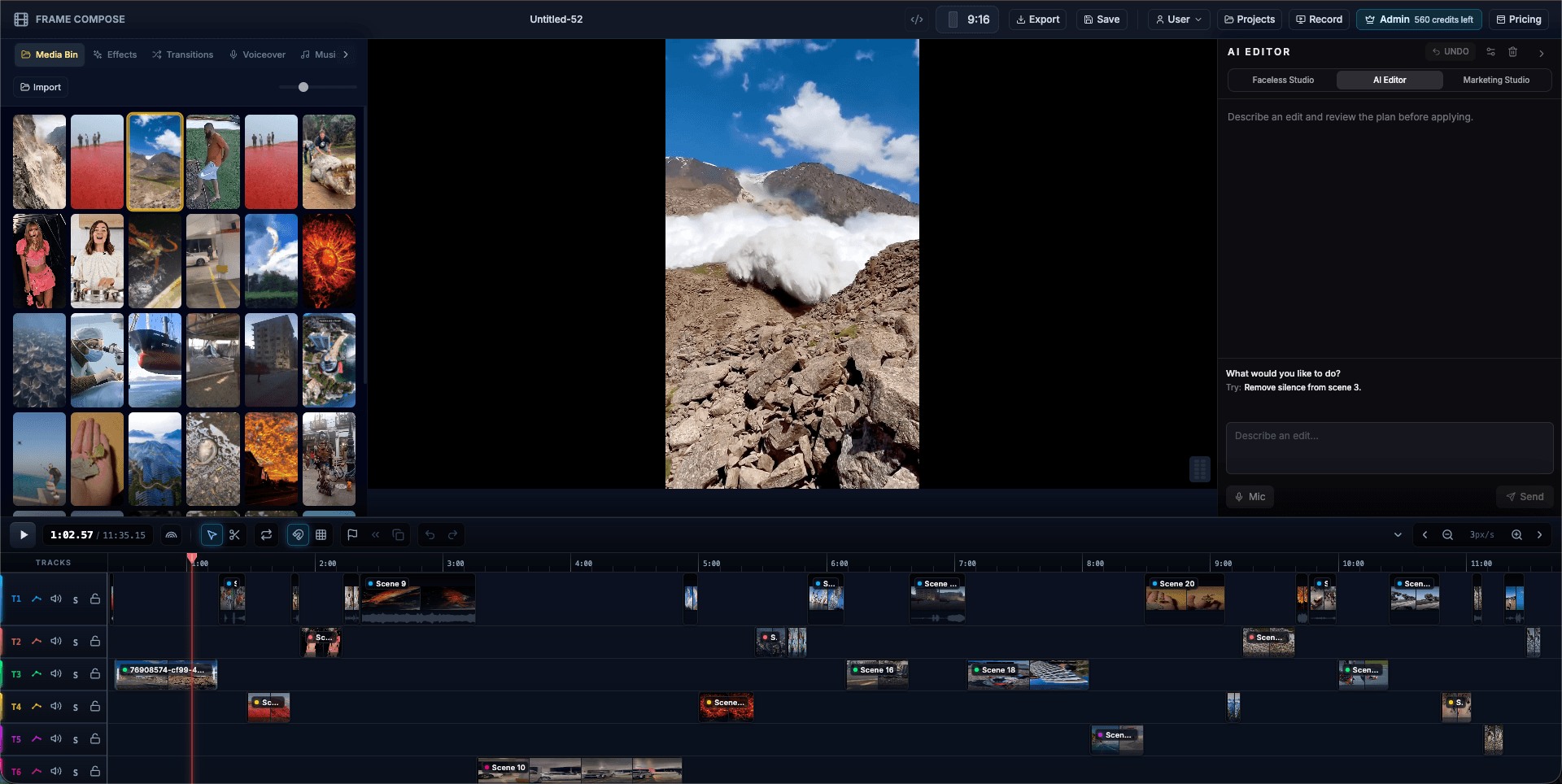
FrameCompose multi-track browser video editing timeline
A conventional timeline sits underneath the AI workflow.

Watch the draft once without editing.

Name the failure: meaning, continuity, quality, or timing.

Replace only the visual, line, or duration that caused it.

Preview both scene boundaries before export.

1. Diagnose before regenerating

Play the complete draft once and write down the exact reason the scene fails. Does it contradict the narration, repeat the previous shot, change the character, show unreadable text, use the wrong product, or simply last too long?

A vague judgement such as “it looks bad” often leads to another vague prompt and another bad result.

2. Preserve everything that already works

Lock in the accepted narration, captions, surrounding scenes, music, and overall timing. Decide whether the failure belongs to the media, the spoken line, or the transition.

If only the image is wrong, do not rewrite the line. If the line makes the image impossible, correct the script first.

3. Choose the cheapest reliable repair

Try a better prompt, a scene variation, a restyle, a reference image, stock or owned media, or a manual upload. Preserve the existing duration initially so you can compare the replacement fairly.

Only regenerate the full project when the problem is structural across most scenes.

4. Review the joins and final claims

Preview the end of the previous scene, the complete replacement, and the beginning of the next scene. Check caption timing, voice continuity, music, visual direction, spelling, logos, and factual details.

One clean replacement can expose another small issue, but avoid endless polishing that does not improve the viewer’s understanding.

Frequently asked questions

A few quick answers before you jump in.

Should I regenerate the entire AI video when one scene is wrong?

Usually not. First determine whether the problem is isolated to one visual, line, duration, or transition.

What should I keep fixed during a scene replacement?

Keep accepted narration, captions, neighbouring scenes, and timing unless one of those elements caused the failure.

Can an uploaded clip replace an AI scene?

Yes. Owned or licensed media is often the most reliable fix when a product, person, or exact action must be accurate.

When is a full regeneration justified?

Consider it when the script, visual direction, pacing, or structure is wrong across most of the project rather than in one isolated scene.

Related pages

Explore the rest of the workflow, from first idea to final export.