Presenter format

Put a consistent presenter at the centre of the story.

The talking-presenter template structures the script as a direct-to-camera explanation and keeps the presenter, supporting scenes, captions, and narration available for revision.

Maintained by the FrameCompose product team · Last reviewed 6 August 2026

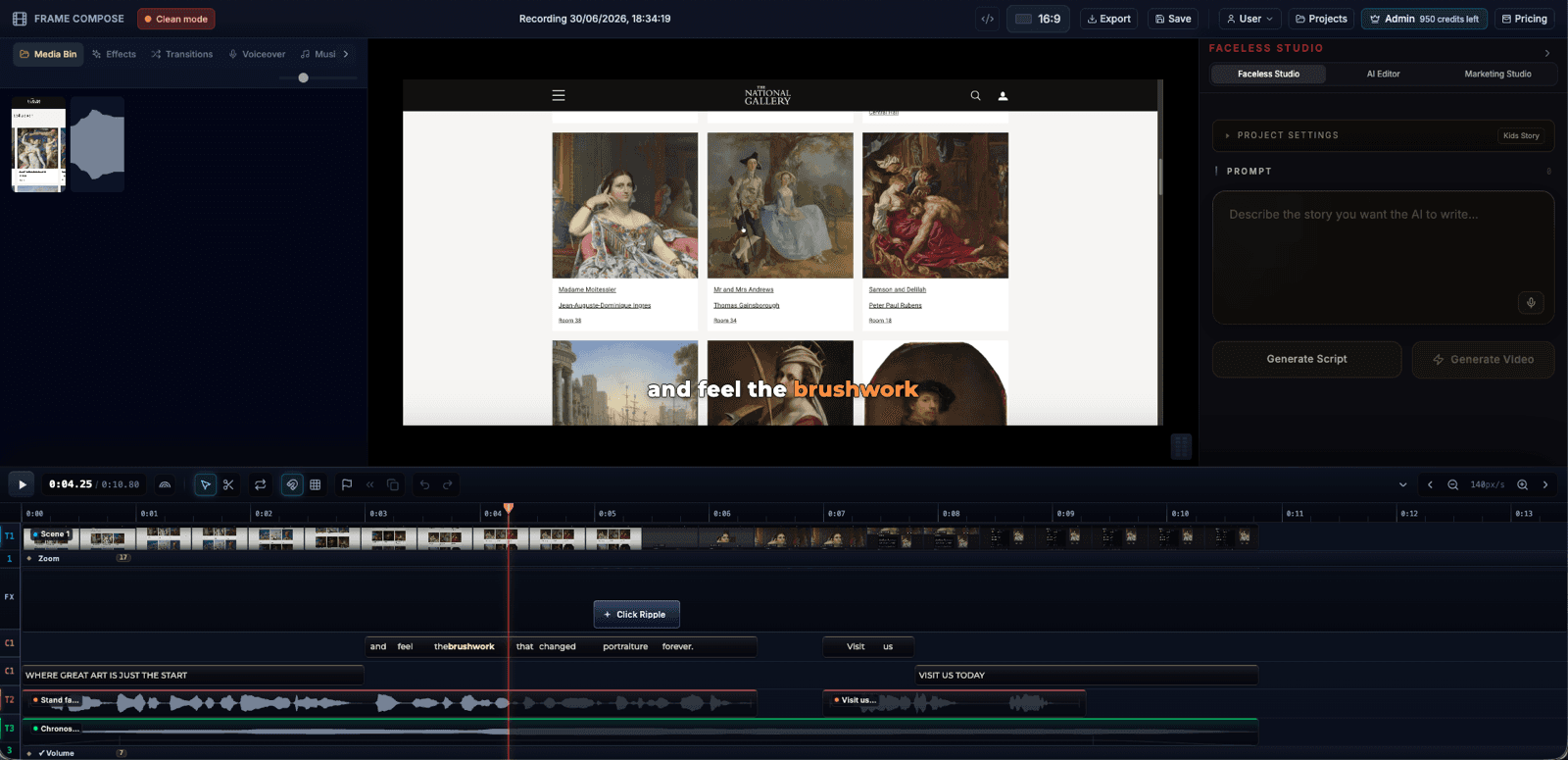
FrameCompose presenter-led promotion edit with supporting visuals, captions, and audio
Presenter shots and supporting visuals can be arranged on the same timeline.

Direct-to-camera script structure.

AI character and speaking workflow.

Supporting visuals can be mixed with presenter shots.

A complete houseplant explainer recipe included below.

Live recipe proof

Talking Presenter

An on-screen host talks straight to camera, lipsynced over every scene

Template
Talking Presenter
Style
UGC Selfie
Camera direction
Auto (per scene)
Talking mode
On-screen speech (app voice + captions)
Model
Images · GPT Image 2
Length
~36s (6 scenes)

Exact prompt

5 signs your houseplant is secretly dying — and the 60-second fix for each one. Talk to camera like a friend who has killed a dozen plants and finally cracked the code: droopy leaves, crispy tips, yellowing, leggy stems, and soil that smells wrong.

Write like one person speaking

Presenter scripts work when they sound spoken rather than written. Use short sentences, direct address, clear examples, and natural transitions. The character should have a reason to be on camera beyond reading a generic list.

A strong opening establishes who is speaking, what the viewer will learn, and why the answer matters.

Choose when the presenter should be visible

Keeping the character on screen for every second can become repetitive. Use presenter shots for the hook, authority, emotion, and transitions, then cut to supporting visuals when the subject needs demonstration.

The project timeline makes that alternation explicit rather than locking the whole video to one avatar frame.

Review lip sync, voice, and continuity

Listen for pronunciation and watch the mouth on important consonants. Check clothing, framing, face, and lighting across generated shots. If one take fails, replace that scene rather than restarting the complete video.

Consistent reference material helps but does not guarantee identical results from every model generation.

Use synthetic presenters responsibly

Do not create a deceptive likeness of a real person without permission. Be especially careful with endorsements, news, politics, health, finance, and any situation where viewers could mistake the presenter for a real expert.

Frequently asked questions

A few quick answers before you jump in.

Can the presenter speak my script?

Yes. The template is designed around a direct-to-camera script and a selected voice or model-generated speech workflow.

Can I use B-roll between presenter scenes?

Yes. Supporting images, clips, captions, and effects can sit between or over presenter sections.

Can I replace one bad presenter take?

Yes. Review and replace the affected scene while preserving the rest of the project.

Will the character look identical in every scene?

Reference and style controls improve continuity, but generative models can still vary. Every scene needs review.

Related pages

Explore the rest of the workflow, from first idea to final export.