Character consistency guide

How to keep characters consistent in AI videos

Build the character once, then change the action around them. Use a stable identity description and clear references, compare the scene images, and fix the shots that drift before spending more time on animation.

Maintained by the FrameCompose product team · Last reviewed 22 September 2026

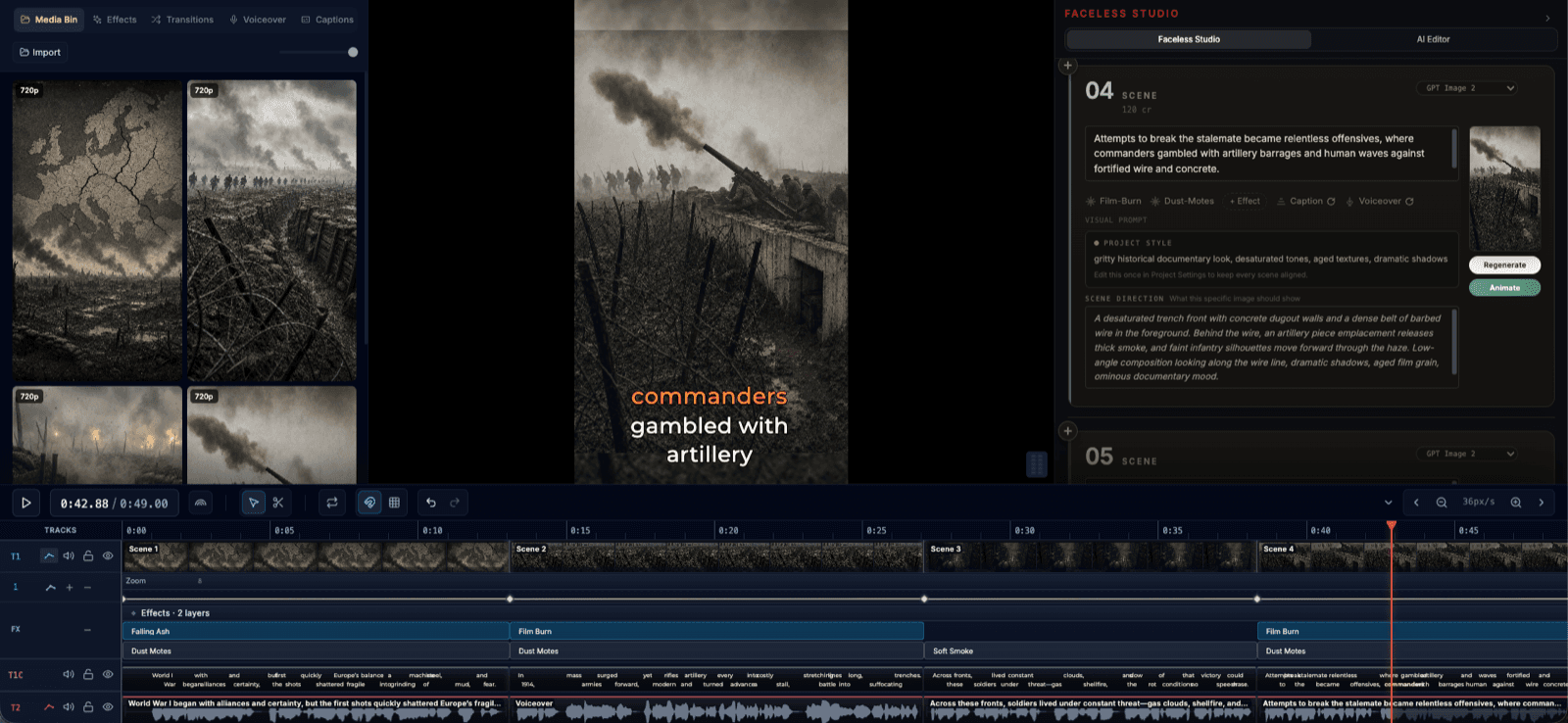
FrameCompose Video Studio with editable scene cards, a vertical preview, and the project timeline
Review each scene and replace individual visuals inside the editable project.

Separate the character’s identity from the action in each shot.

Reuse clear references with consistent hair, wardrobe, and key props.

Compare adjacent scene images before turning them into video.

Repair the mismatched shot and check the joins on the timeline.

1. Separate identity from scene direction

A character’s name is useful for your script, but it does not describe a face. Write a compact identity brief with visible traits: face shape, hair, build, outfit, and one or two distinctive details. Reuse that description instead of inventing new adjectives for every scene.

Keep actions, expressions, camera angles, and lighting outside the identity brief. Mara can be curious in a close-up and relieved in a wide shot without becoming a different person. If the story deliberately changes her clothing, record when that change happens.

Example identity brief: Mara

An original fictional character brief. Adapt it to the character and reference images you use.

IDENTITY
Mara is a station cleaner in her thirties with a round face, short dark curls, and a small gap between her front teeth.

WARDROBE FOR THIS STORY
Navy work jacket, yellow scarf, dark work trousers.

RECURRING PROP
Small green watering can.

CHANGE PER SHOT
Pose, expression, gaze, camera distance, and the action.

KEEP STABLE
Face, hair, wardrobe, and the colour and shape of the watering can.

2. Choose clear character references

Use references where the face and important clothing are easy to see. A dramatic crop, heavy shadow, or hand covering the face leaves more for the model to infer. If you use several references, make sure they agree on the identity and intended outfit.

In FrameCompose, select the recurring character in Video Studio’s character controls and review the available character references and outfit before generating the scene visuals. Reference support varies by model. Use the controls available for your selection, and inspect the output rather than assuming that an attached image guarantees a match.

Treat a reference as guidance for appearance, not a demand to repeat its pose and framing in every scene. A consistent character can still appear in varied, useful shots.

3. Change the action while keeping the identity brief

Reuse the identity and wardrobe details when you write the next image direction. Add only what that scene needs: where the character stands, what they are doing, and what the viewer must notice. Contradictory descriptions create avoidable ambiguity.

For the station story, the discovery and watering shots have different jobs. Keep Mara and the station recognisable, but give the second shot a closer view of the watering can. Trying to preserve every pixel of the first shot would make the story feel static.

Scene A: discovery

Use alongside the selected character reference. This is a written prompt example, not a generated comparison.

Mara, with the same round face, short dark curls, navy work jacket, and yellow scarf as the character reference, stands on the tiled station platform holding her green watering can. Medium shot. She looks curiously at the tiny forest inside the old vending machine.

Scene B: her decision

The action and framing change; the identity, outfit, and location remain stable.

Mara, with the same round face, short dark curls, navy work jacket, and yellow scarf as the character reference, tips her green watering can towards the tiny forest through the vending machine’s open service door. Close view of the action, with her face visible beside the machine. Same tiled station platform.

4. Check continuity before animation

Review the scene images together. Check the face first, then hair, outfit, body proportions, and props. Also check the setting: a character can look right while the doorway, furniture, or light direction changes so much that the cut feels wrong.

Accept normal differences caused by angle and expression. Repair changes that make the viewer question whether this is the same person or place. If the still image already has the wrong face, replace or regenerate it before using it as the start of a video clip.

A quick continuity review

Use this at the image stage and again when you preview the generated motion.

FACE — Does this look like the same person from another angle?
HAIR — Do length, texture, and hairline agree?
OUTFIT — Is the jacket, scarf, and colour palette consistent?
PROPS — Is the same watering can present where the action needs it?
SETTING — Do the station tiles and vending machine belong to the same place?
ACTION — Does the next shot follow naturally from the previous one?

5. Keep motion simple enough to preserve the shot

Once the scene image is right, describe the action you want it to perform. Start with a small head turn, a glance, a step, or one prop interaction. A fast orbit, a full-body transformation, and a complex hand action in the same short clip make it harder to diagnose what went wrong.

Watch the entire generated clip, not just the first frame. If the face drifts halfway through, simplify the motion, use a shorter usable part, or regenerate that scene. Keeping the same model and visual style can make comparison easier, but no setting guarantees perfect identity in every frame.

6. Repair the outlier and review both cuts

If one shot changes the character, correct its description or references and replace that scene’s visual. Keep the accepted scenes as your comparison point. Rerunning the whole story can introduce new differences in shots you had already approved.

In FrameCompose, the result stays split into editable scenes. After a replacement, watch the end of the previous scene, the new shot, and the start of the following scene. Check timing, narration, and captions as well as the face.

Frequently asked questions

A few quick answers before you jump in.

Can AI keep the same character across multiple video scenes?

References and a stable identity brief can help, but you still need to compare the outputs. Results vary with the model, camera angle, lighting, source image, and requested motion. Repair scenes that drift rather than expecting a perfect match automatically.

Is using the same character name enough?

No. A name does not specify the person’s appearance. Pair the name with stable visible traits and character references supported by your selected model.

Should every scene use the same reference image?

A stable reference can anchor identity, while additional compatible views can clarify details where the model supports them. Avoid mixing different faces or outfits unintentionally, and vary the scene direction so every shot does not copy the reference’s composition.

Why does a character change after the image is animated?

The video model generates new frames beyond the source image. Turns, occlusion, large movements, or complex actions can introduce changes. Start with a clearer source and simpler motion, then review the full clip for drift.

Do I need to regenerate the whole story to fix one face?

No. In FrameCompose, replace or regenerate the affected scene’s visual and review its transitions with neighbouring scenes. The other accepted scenes can stay in the project.

Related pages

Explore the rest of the workflow, from first idea to final export.